
Follow the process inside MCAM Workflow.
Same job. Setup, shift update, turnover, materials, notes, report, closeout.
Set up the job
Equipment, work order, area, craft, dates, and standing notes live on the job before anyone starts work.
Open the job and see where it stands
Phase, status, area, dates, and progress on one screen. Update the job, work materials, or close it from here.
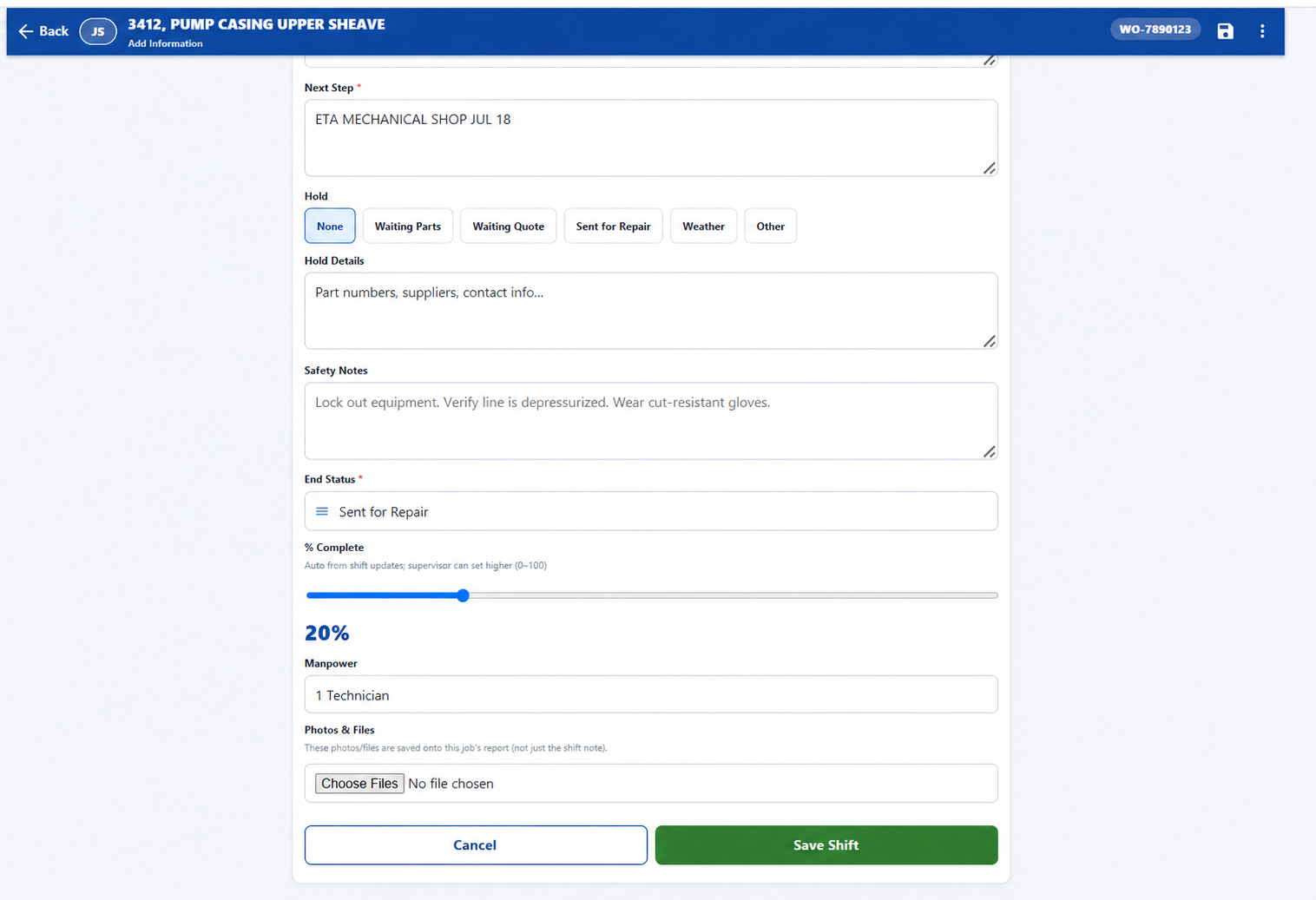
Leave the next crew a usable update
Write the next step, holds, safety notes, end status, percent complete, manpower, and photos against the job before you walk.
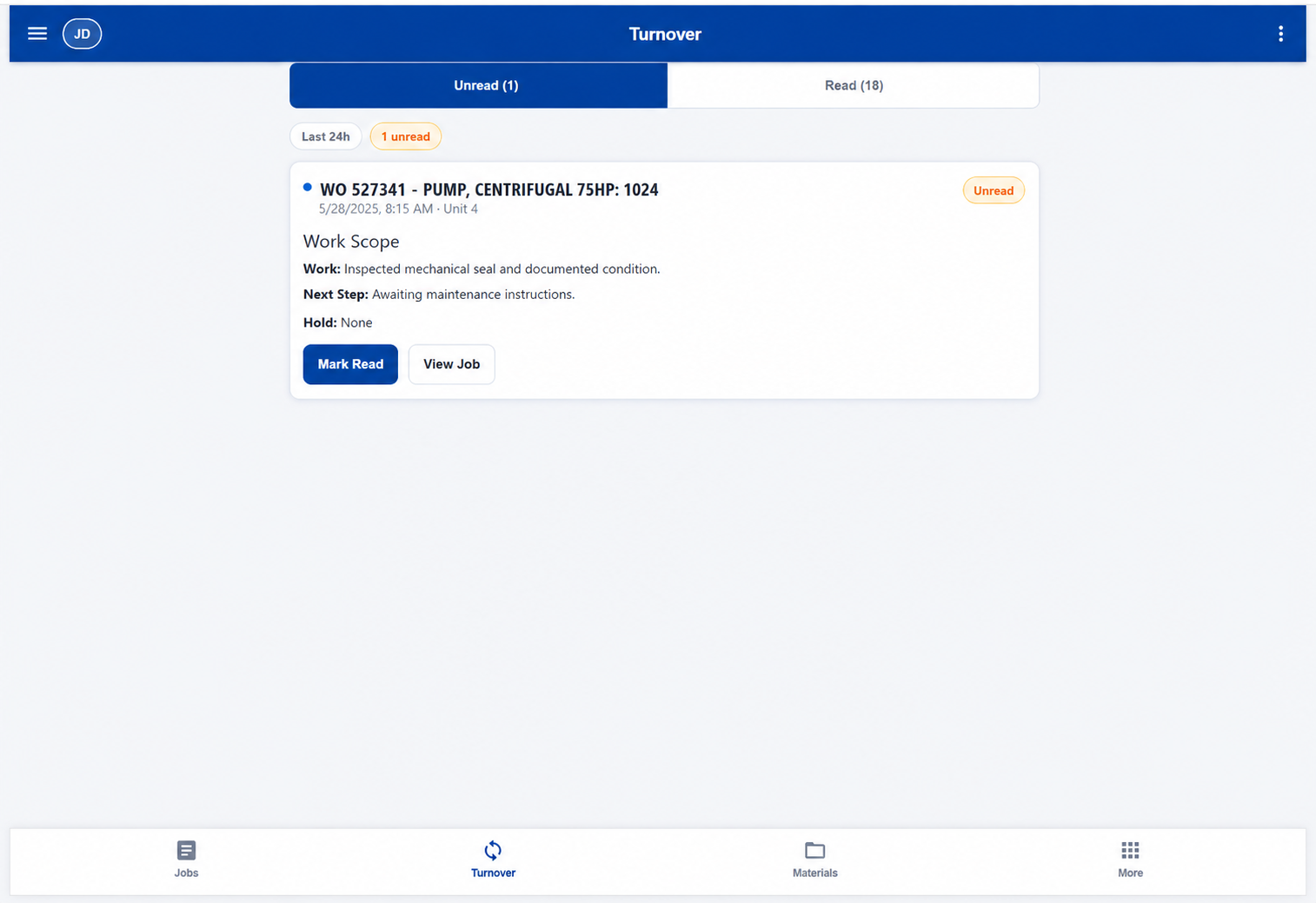
Hand the job to the next shift
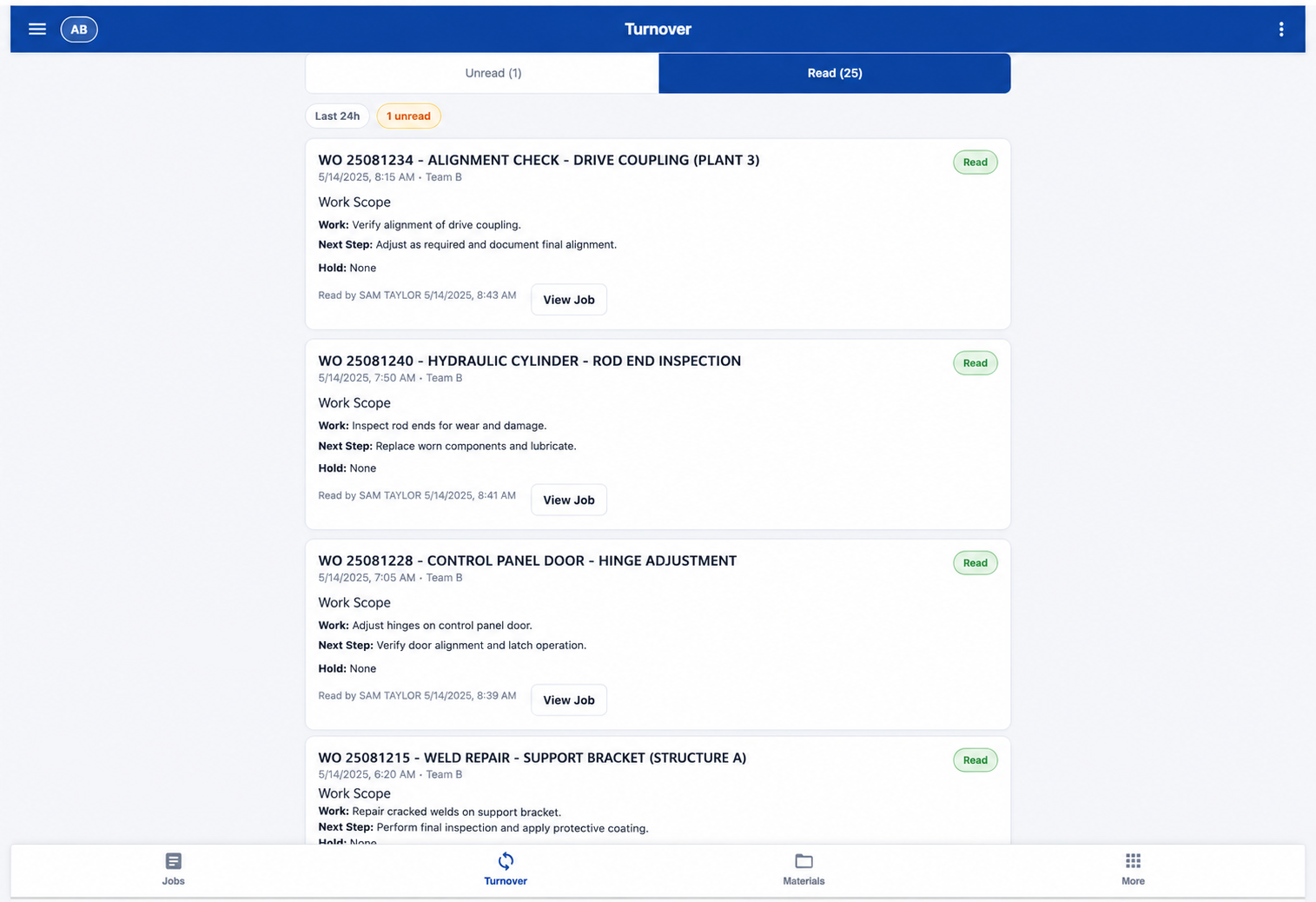
New updates land in unread so the incoming crew sees what changed, what is left, and whether the job is waiting on something.
Keep earlier handoffs after they are read
Read updates stay with the work scope, completed work, next step, and hold. Supervisors can go back without rebuilding the story.
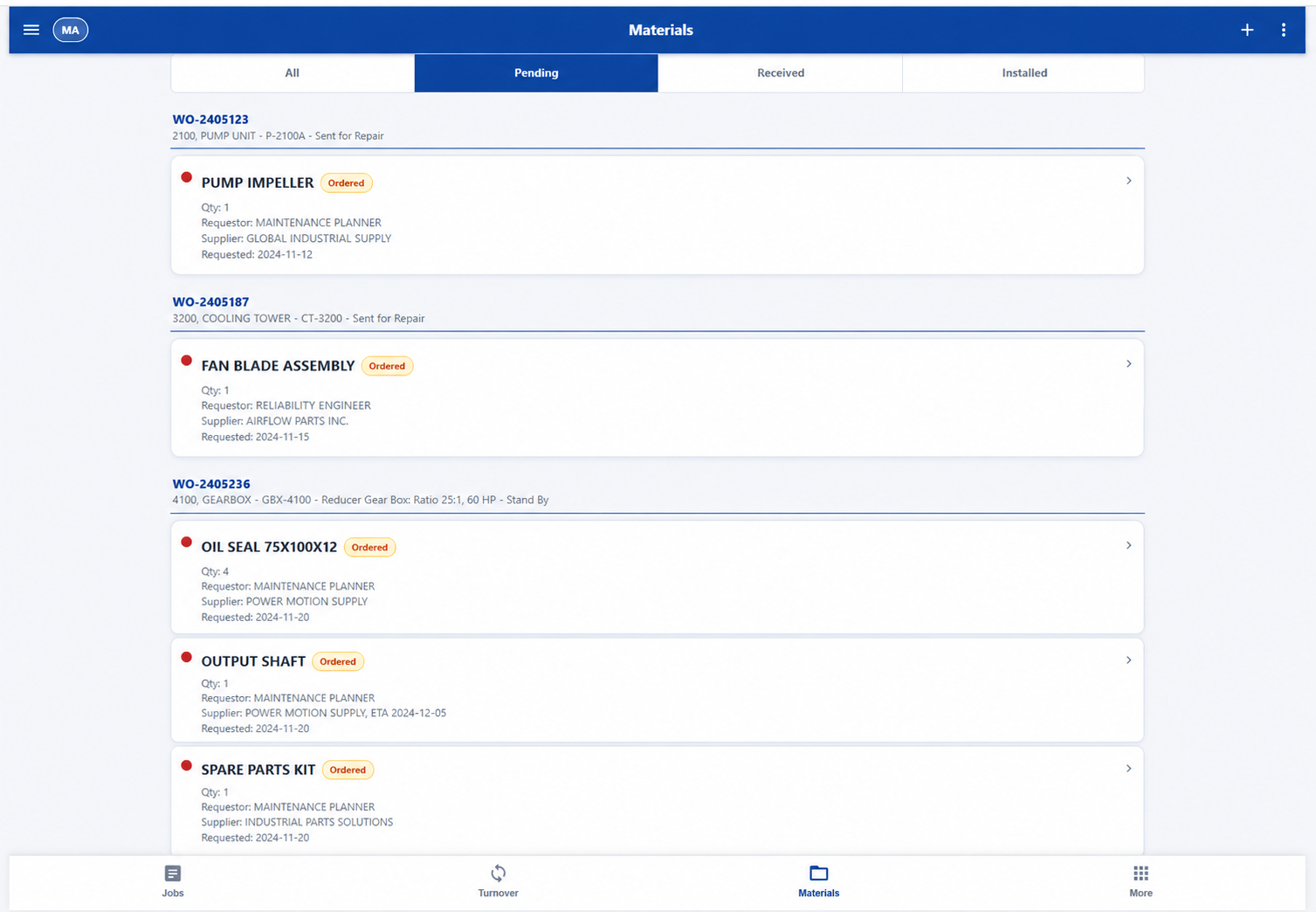
See what is still holding the work
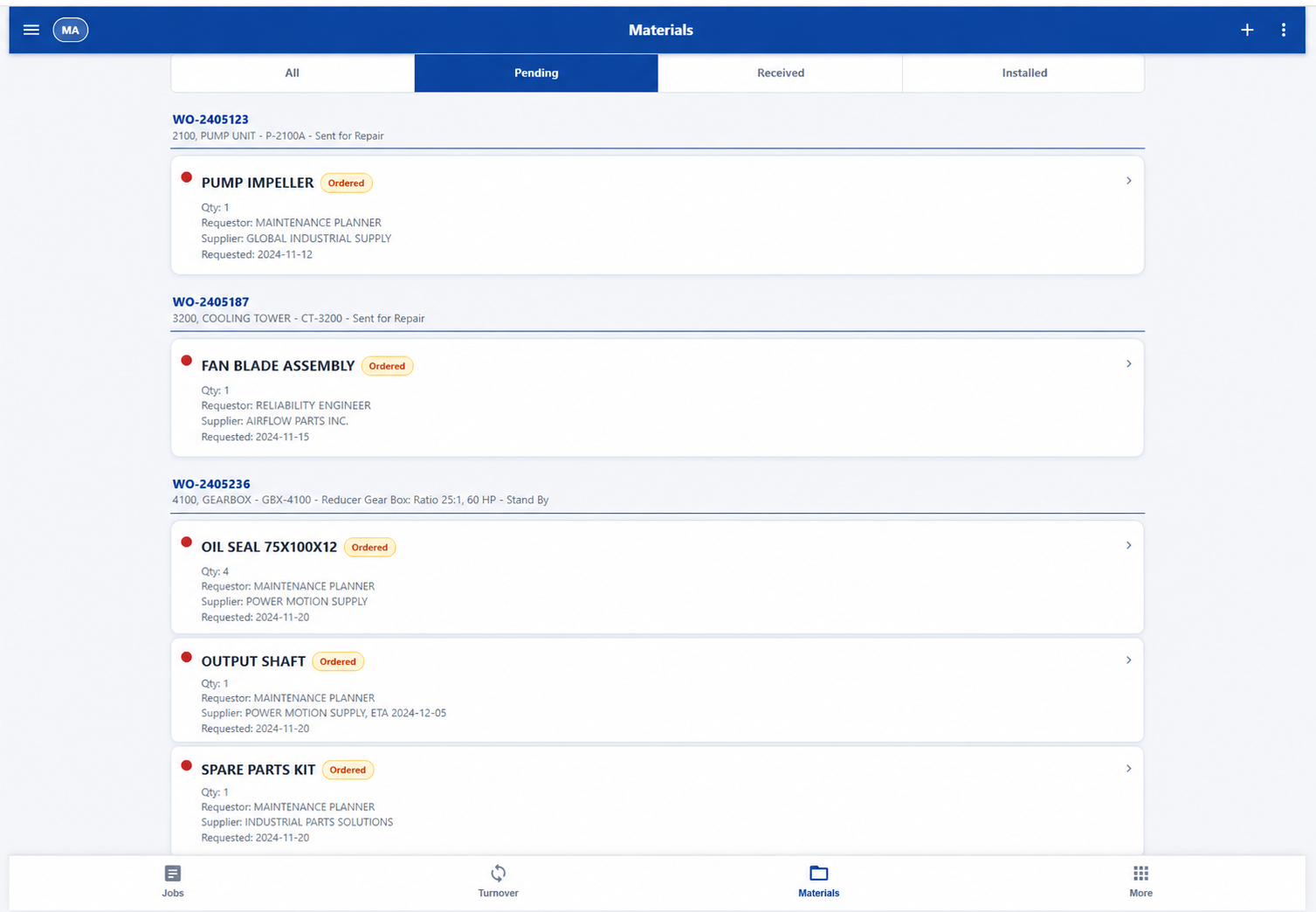
Pending parts stay on the work order with quantity, requestor, supplier, and timing — same context as the job.
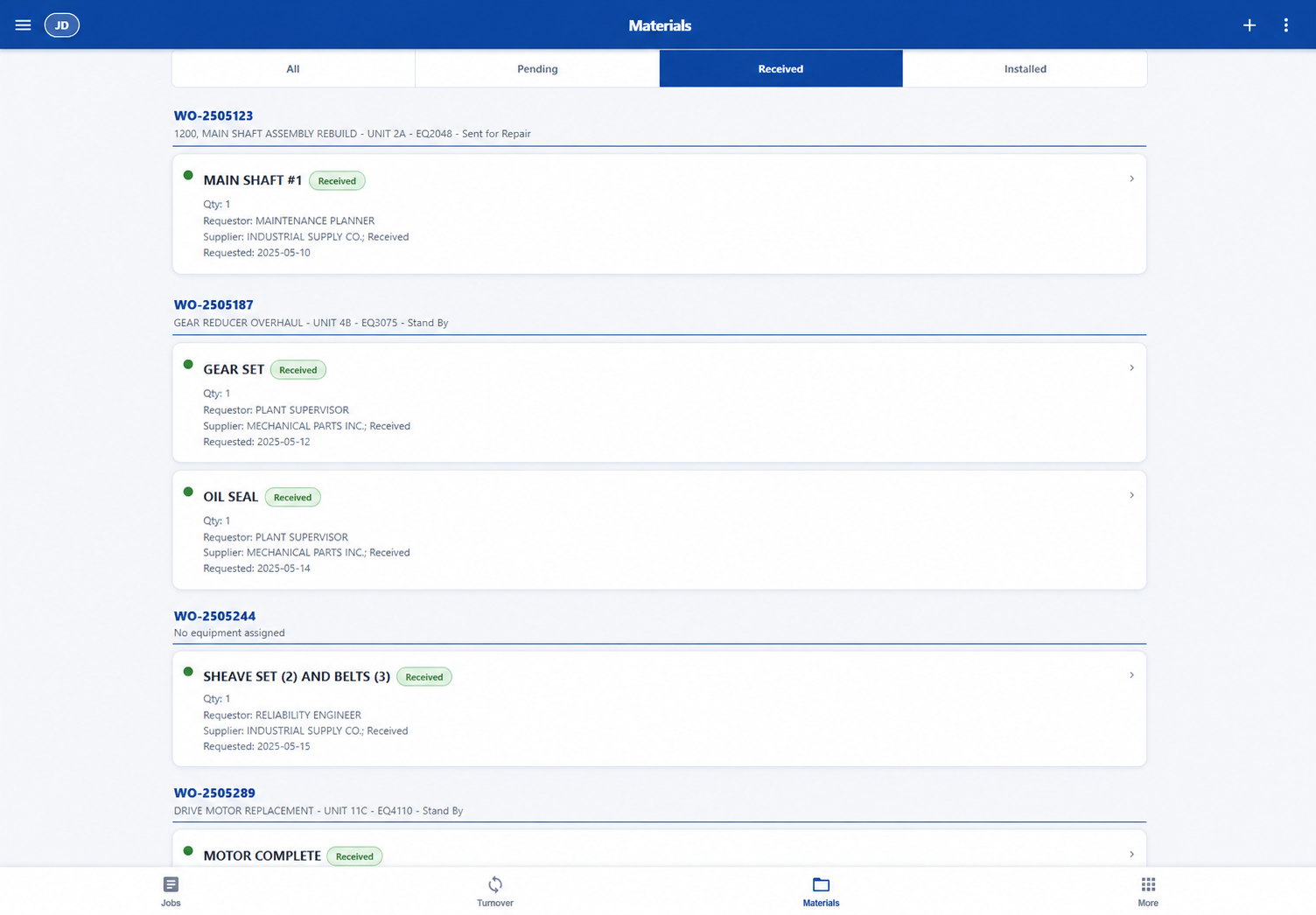
Mark the part in and move the job
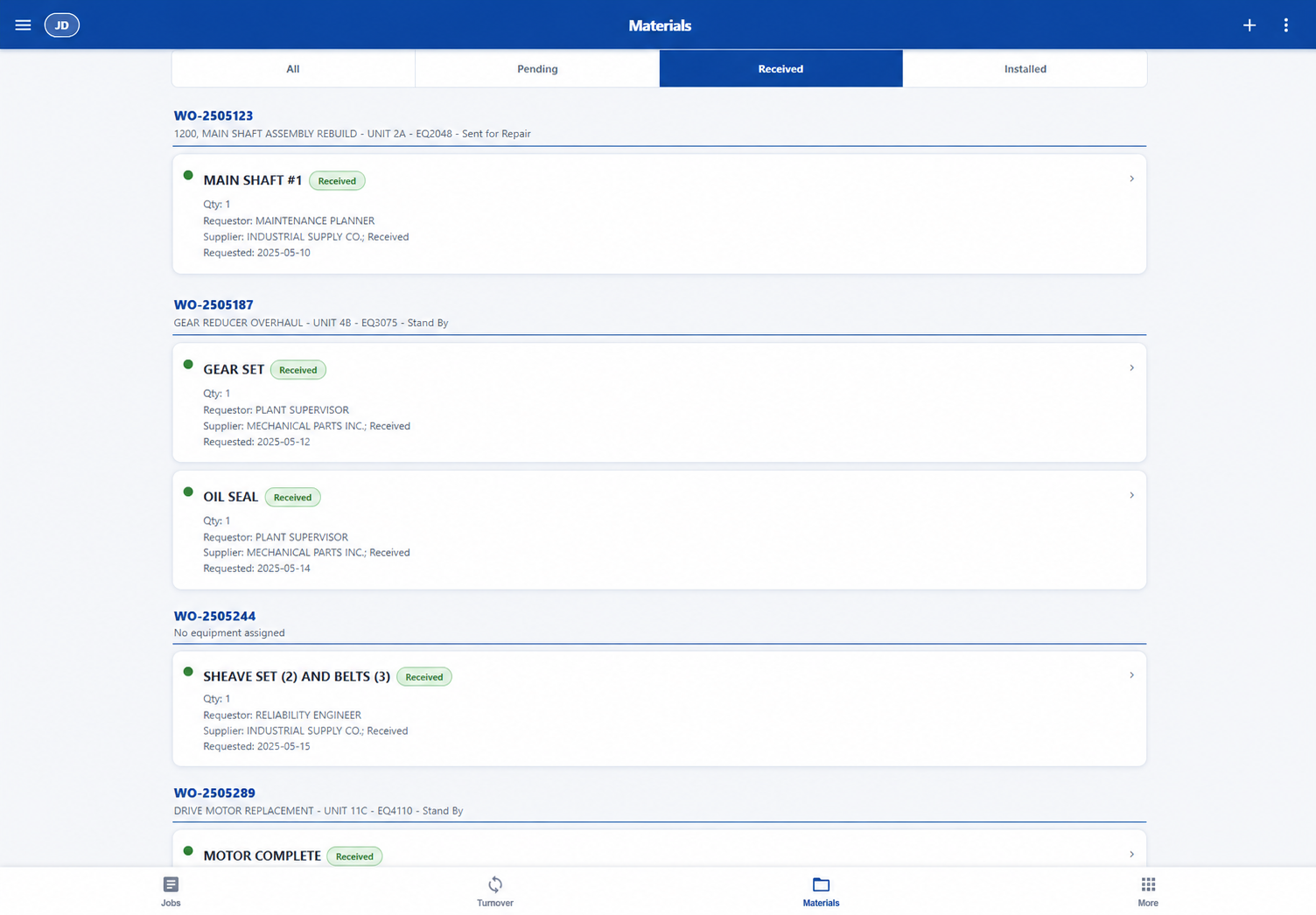
When the part hits receiving, the job shows received. The crew does not hunt through email to find out it arrived.
Keep the history by date and crew
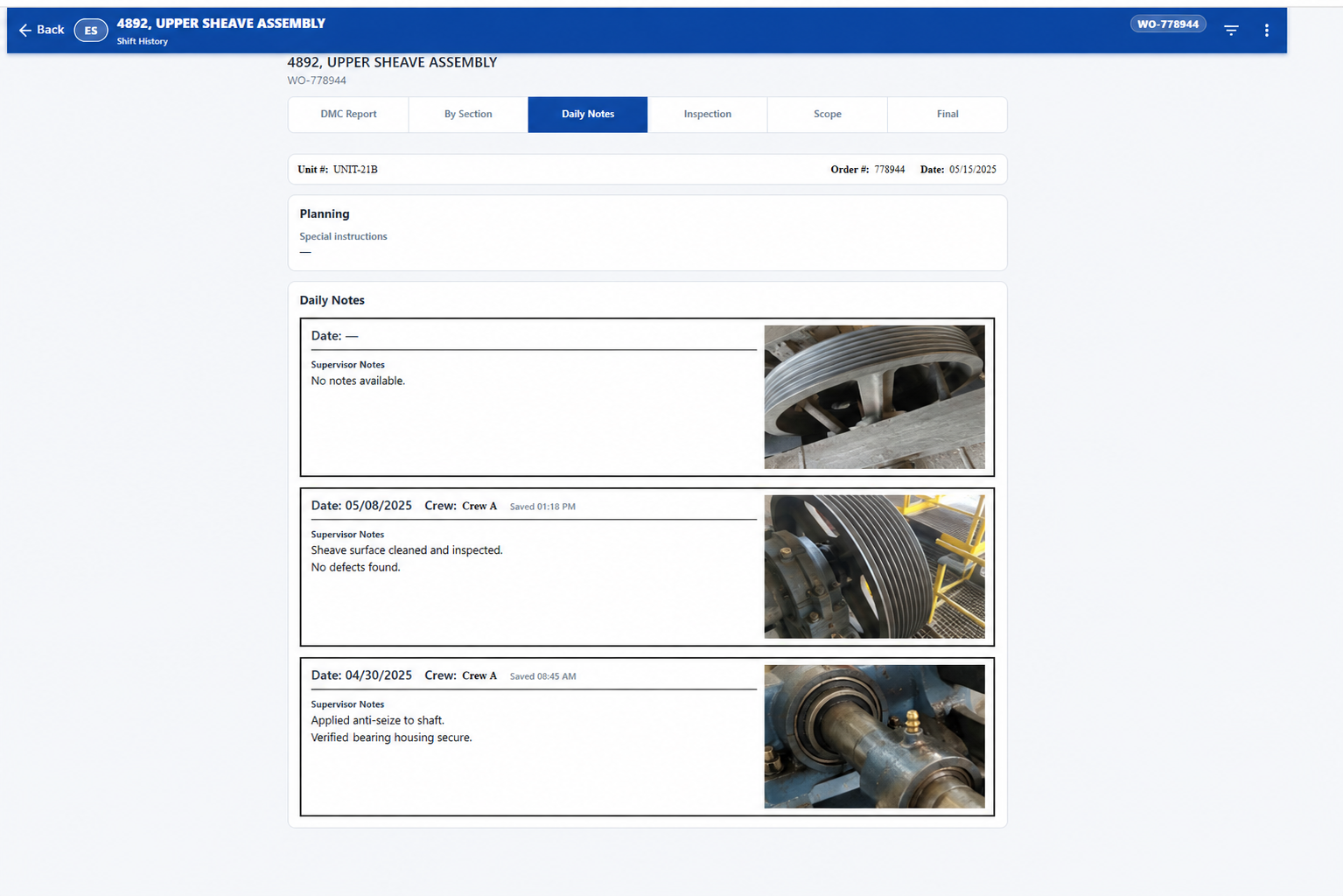
Notes stay dated and attached to the crew that wrote them, with supervisor comments in sequence.
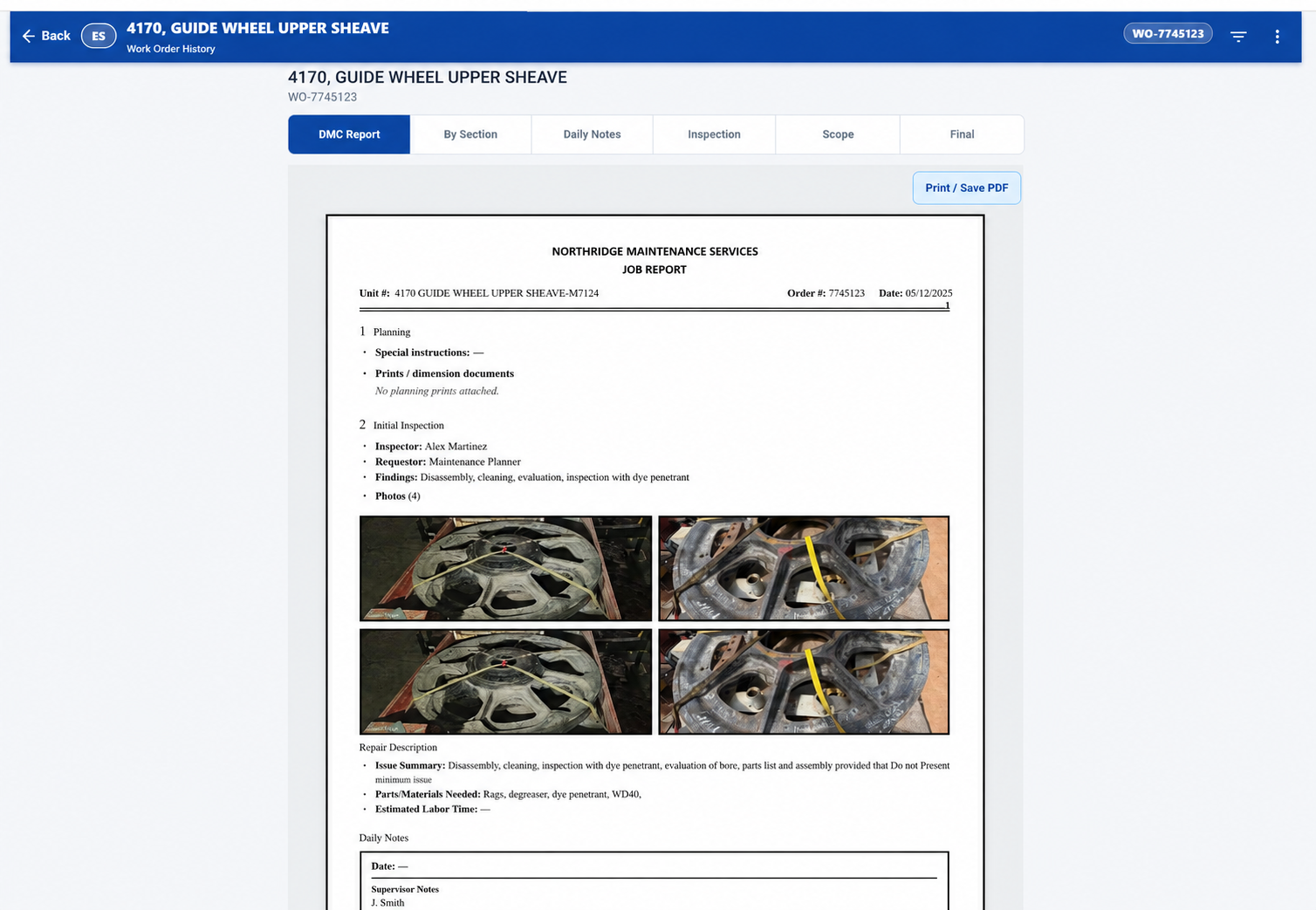
Build the report from the same record
Planning, findings, photos, repair write-up, parts, daily notes, and closeout come from the job you already ran.
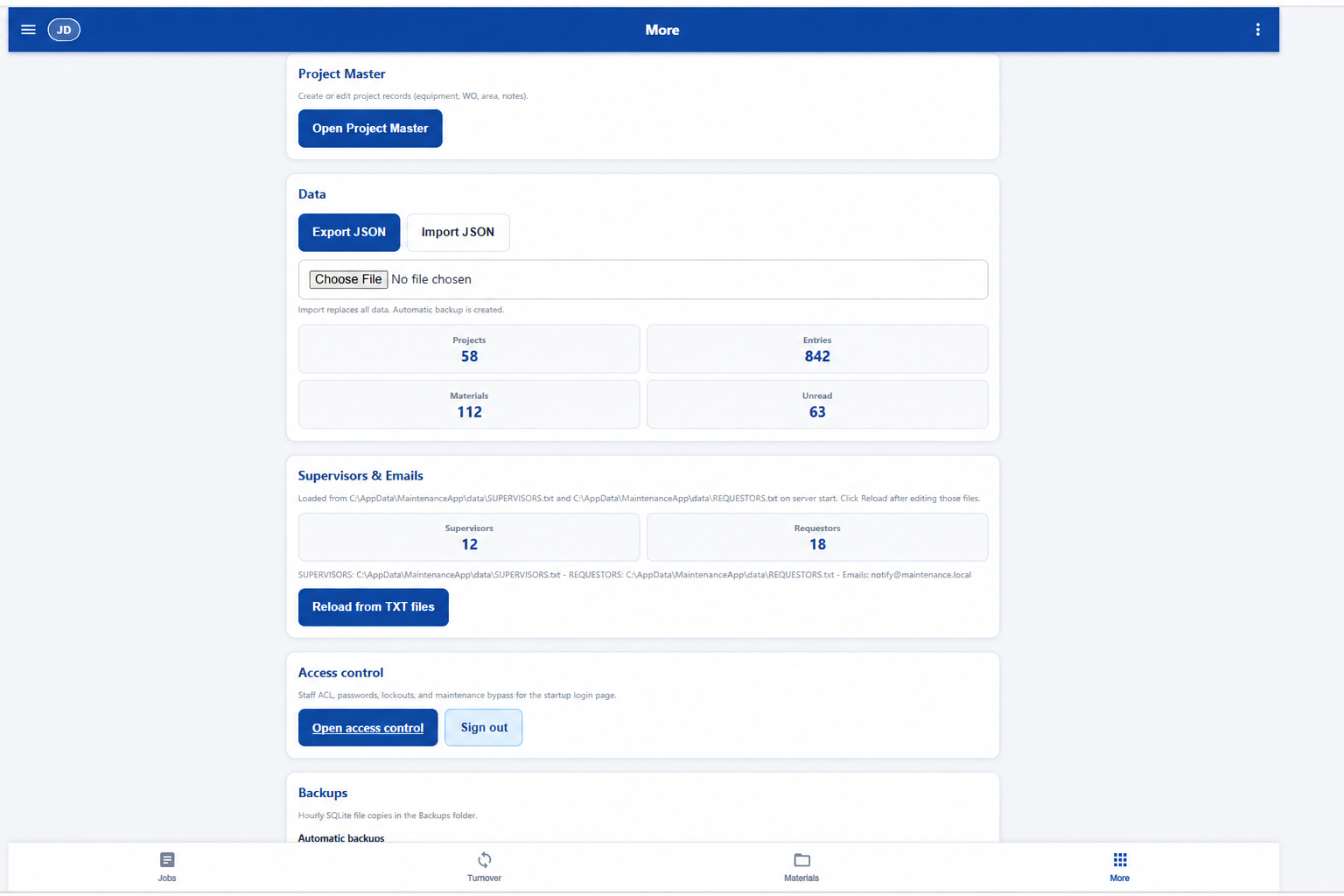
Give supervisors the controls around the work
Project records, counts, requestors, access, and backup. Technicians keep using the job, turnover, and materials screens.
When the job is done, the record stays.
History, materials, reports, and closeout stay on the job. If the deployment is set up for it, the people who need the completion notice get it.
If this is how your work moves, choose a Workflow deployment.
Multi-factor authentication is required for administrator/operator access. You’ll need a standard authenticator app during account activation.